Home › Guides
How to export WinCC tag logging data to CSV
You need historical process values out of WinCC and into Excel, SQL Server or another database. This guide covers why it’s harder than it looks, the ways to do it, and a step-by-step walkthrough. It applies to WinCC SCADA V7.4 and later and to WinCC Professional.
The short answer
Tag logging archives can’t be read with a plain SQL query, so you have to go through the WinCC OLE DB provider, or use a tool that does it for you. The result you want is one CSV file per tag, or one file for all tags, with timestamps you can trust.
Why it’s harder than it looks
- The archives are compressed. Tag logging data sits in SQL Server databases (
.mdffiles), but in a compressed form. A normalSELECTdoesn’t return readable values. - You need the WinCC OLE DB provider. It’s installed with WinCC, and with the WinCC Connectivity Pack on PCs that don’t have WinCC.
- Time zones are easy to get wrong. Archive timestamps are stored in UTC. Your plant works in local time, including daylight-saving changes.
- Size limits. Excel stops at about one million rows, and busy tags log far more than that.
Ways to get the data out
1. WinCC’s own export options
WinCC can export logged values from a running system. You can export directly from the trend screen, which exports the data currently being displayed, but the output format can be confusing. This is fine for a quick look at what’s on screen. It gets slow and manual when you need many tags, long periods, or data from a system that isn’t running.
2. SQL Server Management Studio through the OLE DB provider
You can query the archives from SQL Server Management Studio using the WinCC OLE DB provider and send the result to Excel. It works, but it is limited and slow for large exports, and you have to handle the UTC conversion yourself.
3. Write your own code with the WinCC Connectivity Pack
You can write your own program using the WinCC Connectivity Pack. This takes a standard programming language and ADO to run queries against the WinCC OLE DB provider. You also need to know SQL syntax and the specific query commands the Connectivity Pack uses. It gives you full control, but you have to build and maintain everything yourself, including time-zone handling, file splitting and error reporting.
4. A purpose-built tool
Archive Data Extractor for WinCC does the OLE DB work for you. It reads a folder of archive files, or a running project, and writes CSV files in one run. The rest of this guide shows how.
Step by step: export tag logging to CSV
- Choose a source. Select Archive DB folder to read a folder of
.mdffiles from a running system, a stopped system, or a backup copied from another PC. Every file in the folder is processed in one run. Or select Running WinCC project to read the newest values from the runtime database, including over the network from another PC’s SQL Server.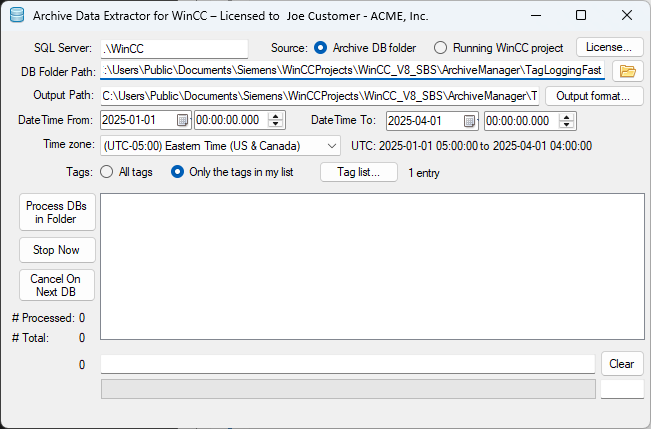
- Set the date range and time zone. Enter the range in your plant’s time zone. The tool shows the UTC range it will request.
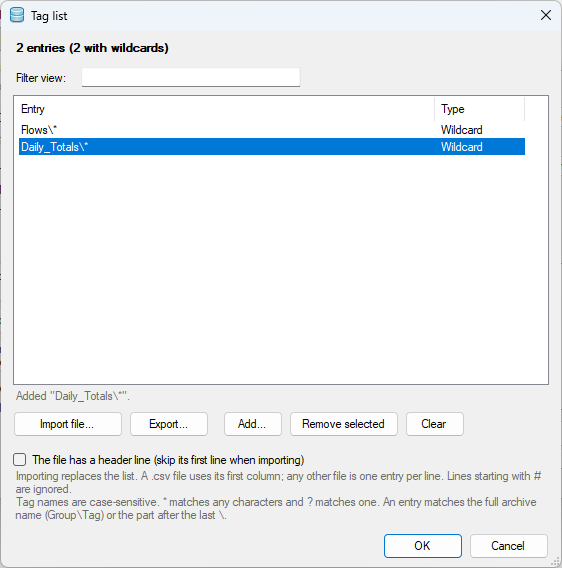
- Filter the tags (optional). Export everything, or use a tag list with wildcards. Tag names are case-sensitive.
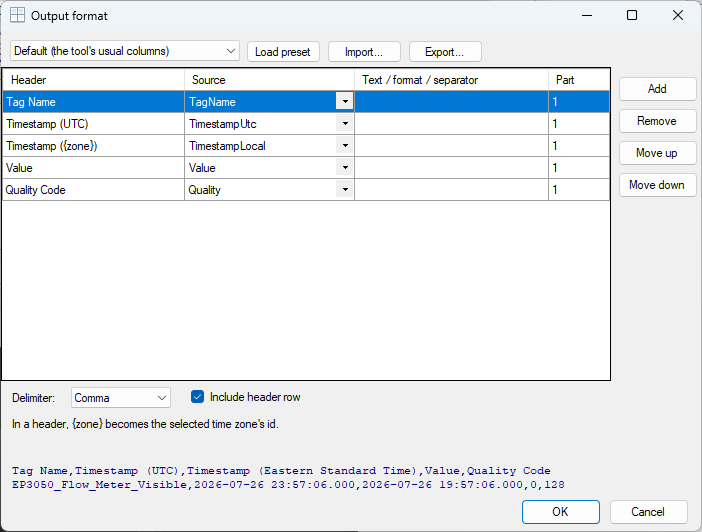
- Design the CSV layout (optional). Choose the columns, order, delimiter and timestamp format, add fixed-text columns, and see a live preview. Start from the Bulk insert preset if you’re loading into a database.
- Click Process. Progress is shown per archive. Cancel On Next DB and Stop Now end a run early, and values already written stay in the files.
- Open the results. By default you get one CSV per tag in a folder named for the year and month of your start date.
ArchiveStats.txtlists how many values were exported for each tag, andErrors.txtlists any problems.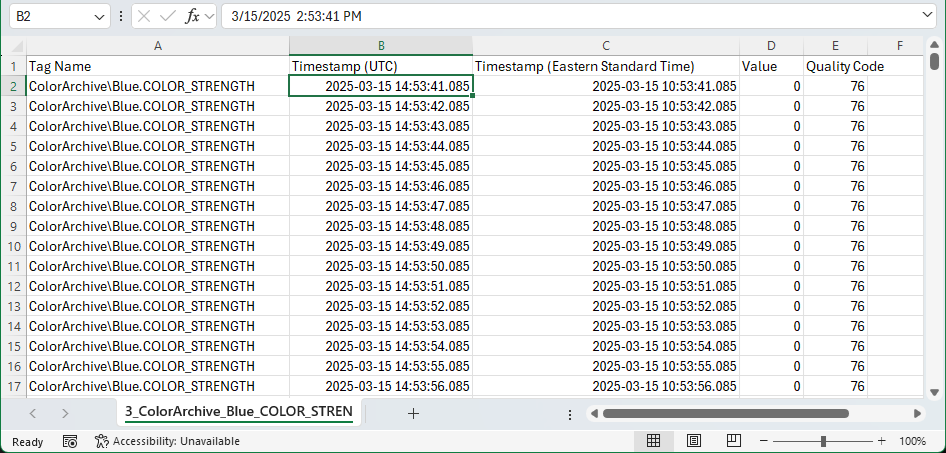
Things to watch for
- Time zones. Every row carries both UTC and local time, so daylight-saving changes don’t cause gaps or duplicates.
- Excel limits. Set a row limit up to 1,000,000. A new file starts when it’s reached, so each one still opens in Excel.
- Work on copies. Attaching an archive file to a newer SQL Server version upgrades it permanently. The tool warns you first, and the default answer is No.
- Duplicate rows. Files are appended to. Running the same export twice writes every row twice, so use an empty output folder.
What you need
- Windows with .NET Framework 4.6.1 or later
- The WinCC OLE DB provider (installed with WinCC or the WinCC Connectivity Pack)
- A SQL Server you can reach with your Windows login, and permission to attach and detach databases for archive folders
Supported: WinCC SCADA V7.4 through the current version, and WinCC Professional. Not supported: WinCC Unified.
Frequently asked questions
Can I export WinCC tag logging data with plain SQL?
Not directly. Tag logging archives are stored compressed, so a normal SQL query can't read them. You need the WinCC OLE DB provider, which is installed with WinCC and with the WinCC Connectivity Pack.
Do I need WinCC installed to read the archive files?
No. You need the archive files, a PC with SQL Server, and the WinCC OLE DB provider. You don't need the WinCC project.
Does this work with WinCC Professional?
Yes. Archive Data Extractor for WinCC supports WinCC SCADA V7.4 through the current version, and WinCC Professional. WinCC Unified is not supported.
Will exporting affect my running WinCC system?
The tool only reads data. It doesn't detach or change archives that WinCC has attached. Very large exports add load to the SQL Server while they run, so schedule them sensibly.
How do I stop the timestamps looking identical in Excel?
Excel hides the date and hour on times that include milliseconds. The data is intact. Format the column with the custom format yyyy-mm-dd hh:mm:ss.000 to display it in full.